Search Bar
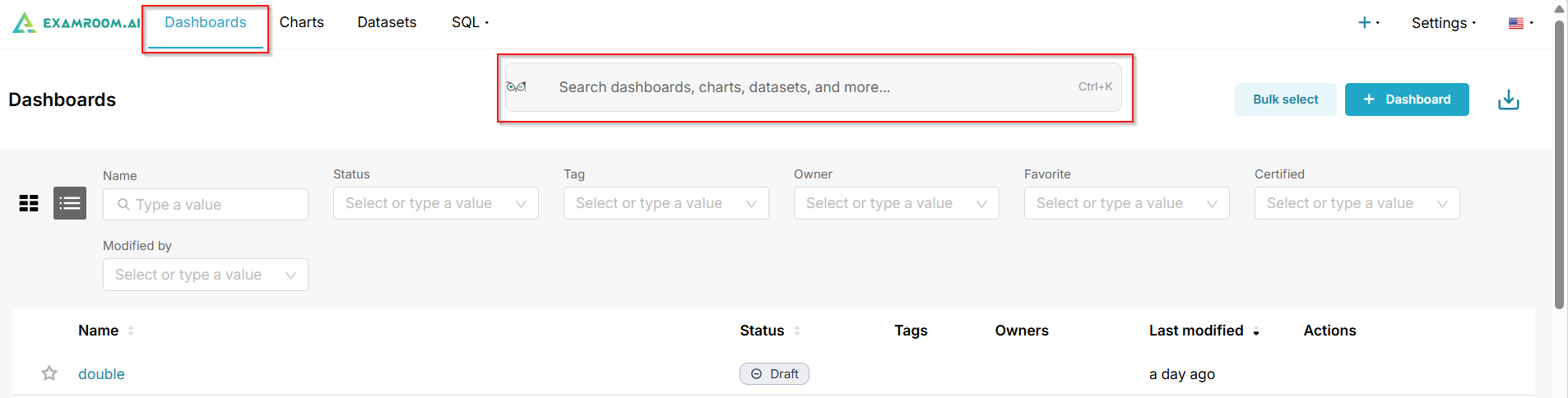
The search bar in the Dashboards section enables quick access to dashboards, charts, datasets, queries, and other content. Positioned at the top of the page below the navigation tabs, it allows for efficient searching.
Follow the instructions below to use it effectively:
- Access the Dashboards Section
- Navigate to the ExamRoom.AI homepage or main navigation menu.
- Click on Dashboards in the top navigation bar (highlighted in blue when active). This opens the Dashboards listing page, where the search bar appears prominently below the navigation tabs (Dashboards, Charts, Datasets, SQL).
- Enter a Search Query
- Locate the search input field labeled "Search dashboards, charts, datasets, and more...".
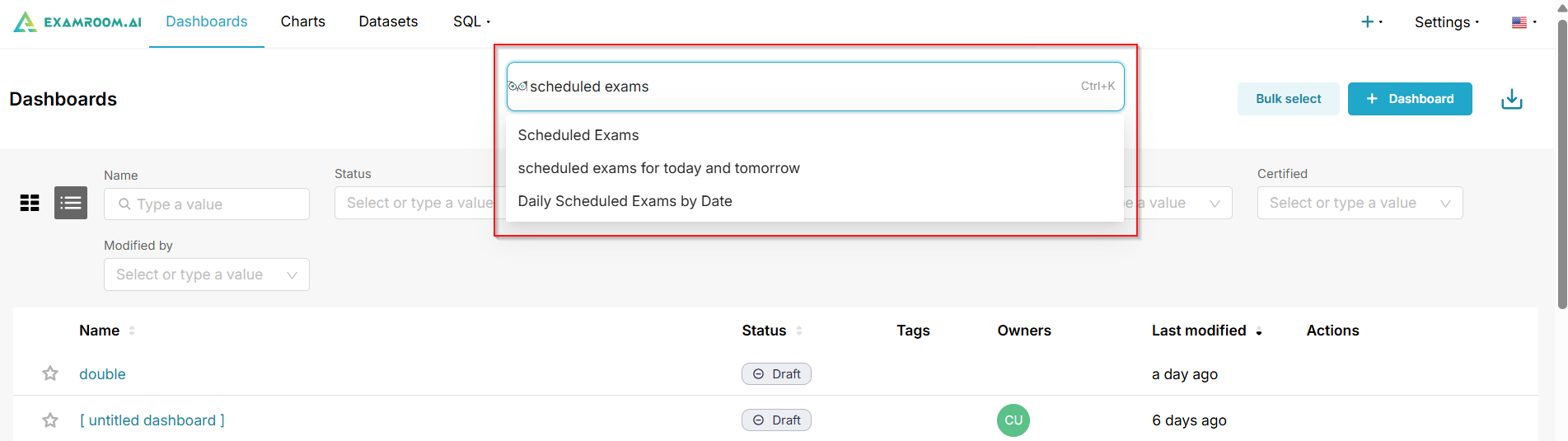
- Click inside the field or press Ctrl+K to see search suggestions.
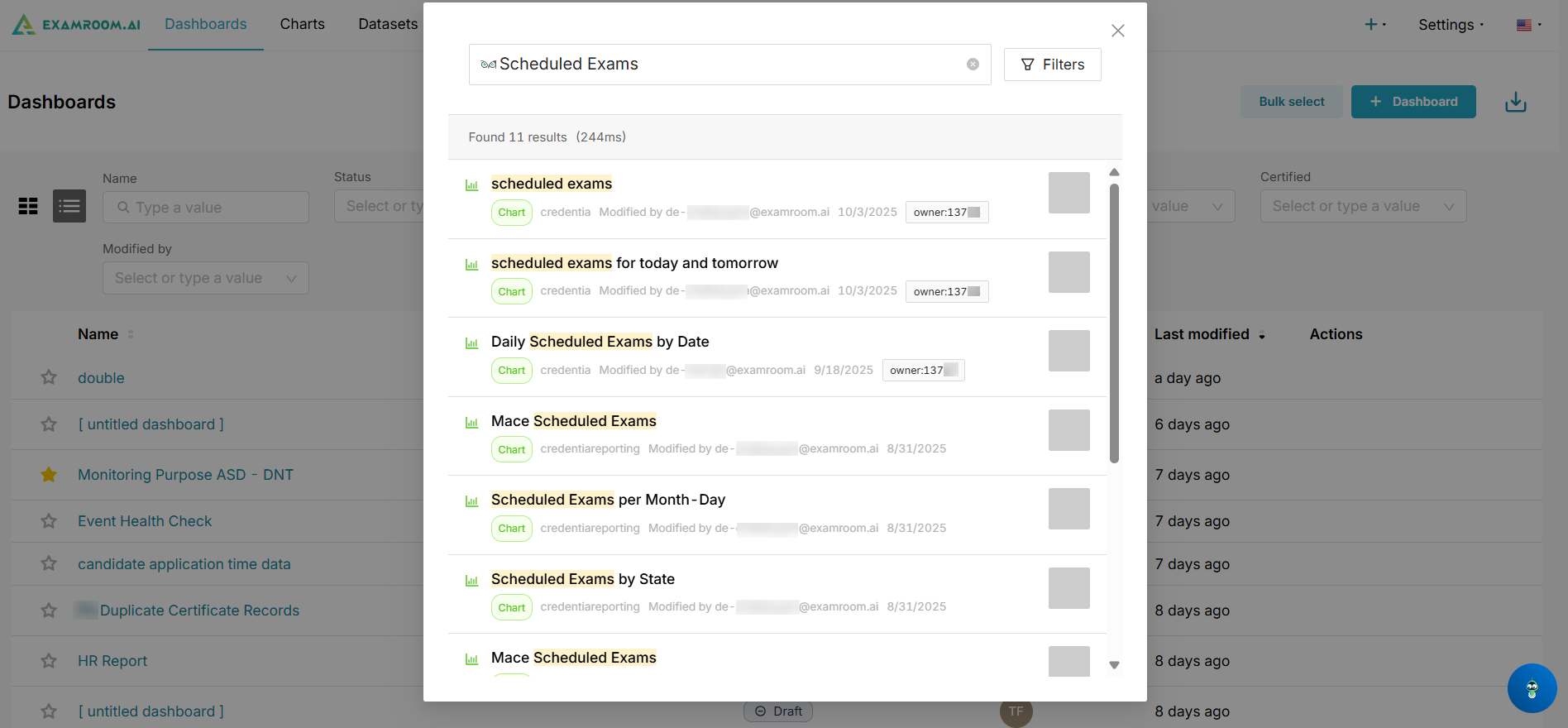
- Choose the suggestion or type your query (e.g., "scheduled exams" to find related content). As you type, the interface automatically filters and displays matching results in real-time below the search bar.
- Results include previews like names, descriptions, owners, modification dates, and thumbnails.
- The total number of results (e.g., "Found 9 results (194ms)") appears below the query.
- Review and Browse Search Results
- Scroll through the results list, which is organized by relevance, displaying key details such as Name, Status, Tags, Owners, Last modified, and Actions.
- If no results match, refine your query with more specific terms or use filters (see Step 4).
- Apply Filters to Refine Results
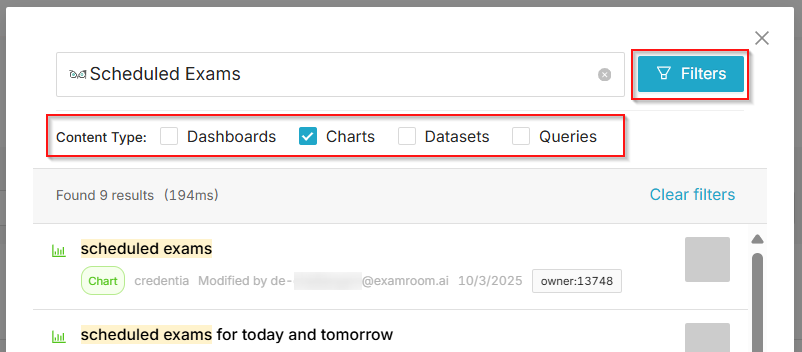
- While viewing results, click the Filters button to the right of the search field. This opens the content type options.
- In the Content Type section, select one or more options to narrow results:
- Dashboards.
- Charts.
- Datasets.
- Queries.
- The result will automatically update once you check the filters to refresh the results. The filter count (e.g., "9 results") will also refresh.
- To reset, click Clear filters at the right side of the panel or the X to close it.
- Select the needed item (chart, dashboard, dataset, or queries) from the Search Results.
- Click to open the selected item in a new window to view, customize, or save.