AI Assistant for SQL Queries
The SQL Lab section's AI Assistant streamlines data querying by allowing you to describe your needs in simple English. It automatically generates the appropriate SQL code from your description, making it easier for non-experts to access data from databases like PostgreSQL. This feature is built into the query editor and works with schema browsing and automation tools. Here are detailed steps to use it effectively.
- Click SQL from the top navigation bar and select SQL Lab from the dropdown menu.
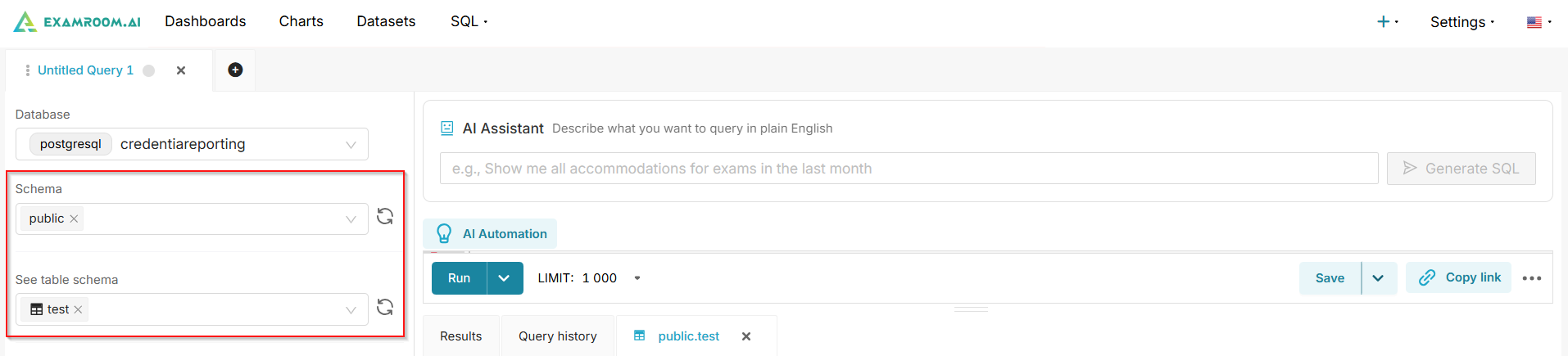
- Select Your Schema
- In the left panel, the Database field is prefilled. This ensures the AI Assistant uses the correct data source.
- Under Schema, select or search for the relevant schema (e.g., type to filter options).
- Optional: Click See table schema to view details of available tables, which can inform your plain-English description.
- Under Table, select or search for specific tables if you want to narrow the scope upfront.
- Describe Your Query Using the AI Assistant
- Locate the AI Assistant panel on the right side of the editor (it has a chat-like interface with a lightbulb icon).
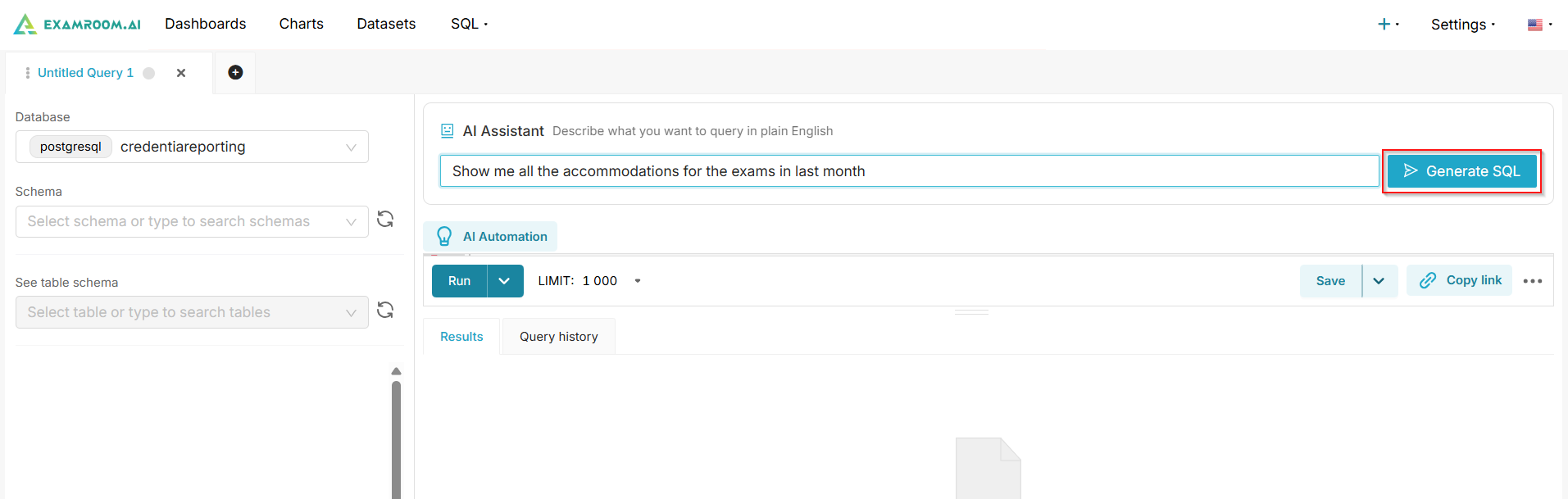
- In the text input field labeled "Describe what you want to query in plain English", type a natural language description of your desired results.
- Example: "Show me all accommodations for exams in the last month" (as shown in the placeholder).
- Be specific for better accuracy: Include details like dates, filters (e.g., "exams scheduled today"), aggregations (e.g., "count by date"), or joins (e.g., "include candidate names").
- The AI will analyze your description against the selected database and schema to prepare the SQL generation.
- Generate and Review the SQL
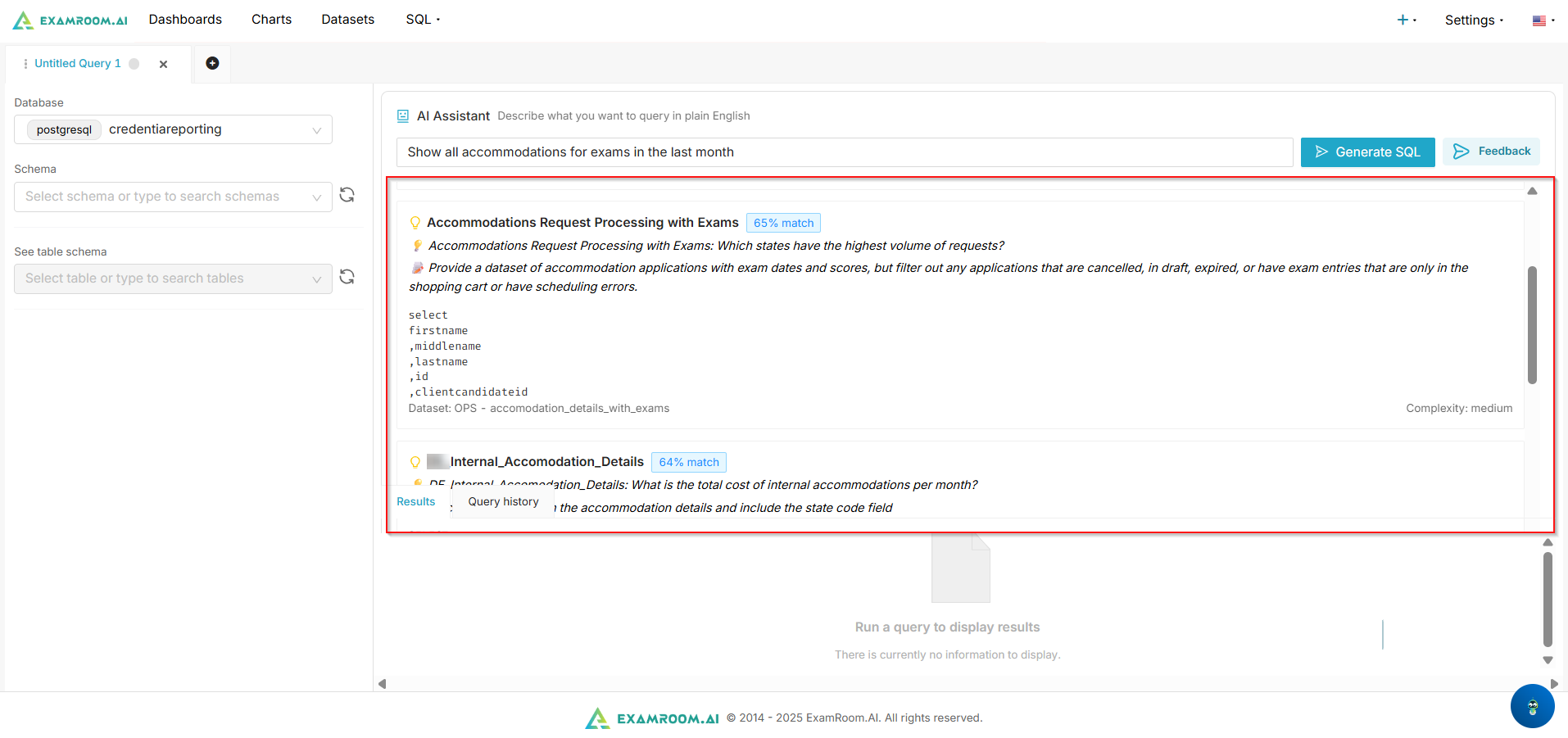
- Click the "Generate SQL" button next to the description field.
- The AI will automatically populate the SQL query editor below with the generated code. Review it for accuracy:
- Check for correct table references, conditions (e.g., WHERE clauses for dates), and limits.
- If needed, edit the SQL manually or regenerate by refining your description and clicking Generate SQL again.
- To choose a SQL query from the results, click on it to insert into the Run table. The query can be modified if necessary.
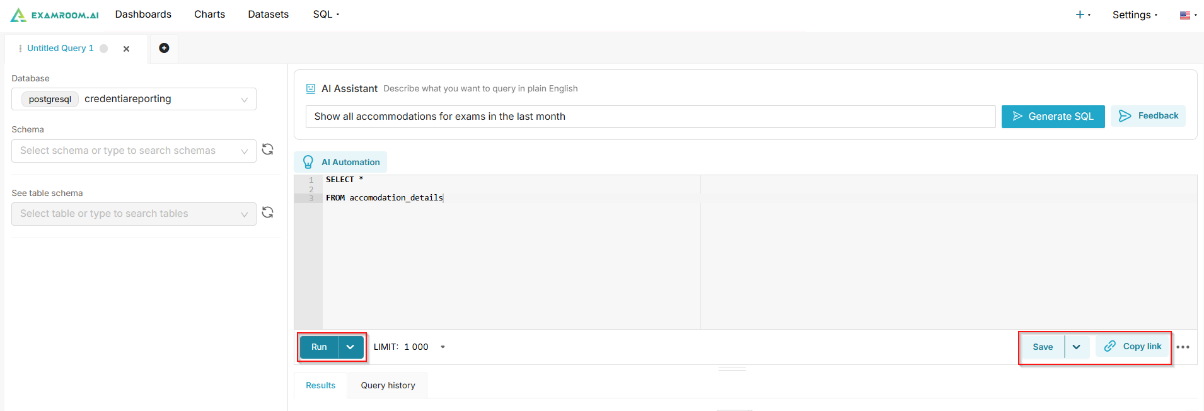
- iv. After inserting the query,
- Click Run to run the query.
- Click Save to save the query.
- Click Copy link to copy the query link to the clipboard.
- Provide Feedback
- You can give feedback on the results you received from generating SQL queries with the AI assistant. See AI Assistant SQL Feedback to learn more about submitting the feedback.
- Run the Query and View Results
- By default, the Limit is set to 1000 rows. You can customize if required. Set the Limit using the dropdown to control output size and prevent overload.
- Click the Run button (play icon) to execute the query.
- Results will appear in the Results tab below the editor, displayed as a table. If no data matches, a message like "There is currently no information to display" will show.
- Switch to the Query history tab to review past runs, including timestamps and outputs.
- Save, Share, or Manage the Query
- Click Save to store the query with a name (e.g., replace "Untitled Query 1") and description. It will appear in your SQL query list.
- Use Copy link (chain icon) to share the query via a unique URL.
- For advanced options, click the ... (ellipsis) menu to duplicate, export, or schedule the query.
- To close or discard, click the X next to the query title.

Note:
- Start simple: Use short, clear sentences to avoid overly complex SQL that might need manual tweaks.
- Handle dates dynamically: Phrases like "in the last month" or "for today" will incorporate current date logic (e.g., based on November 05, 2025).
- Troubleshoot: If the generated SQL is inaccurate, ensure the schema is selected correctly or add more context to your description.
- Privacy note: Queries run on your selected database only; results are not stored unless you save them.
- For complex needs, combine manual SQL editing or explore the AI Automation suggestions for repetitive tasks.
AI assistant SQL Feedback
The AI Feedback option appears after generating SQL queries via the AI Assistant in the Workbench's SQL section. It allows you to rate and provide structured feedback on the generated SQL to improve future results. This helps refine AI performance without regenerating the query unless desired.
Follow the steps below to provide feedback:
- After generating the SQL Query, a Feedback option will appear next to the Generate SQL button. Select a query from the result and click the Feedback button to provide feedback.
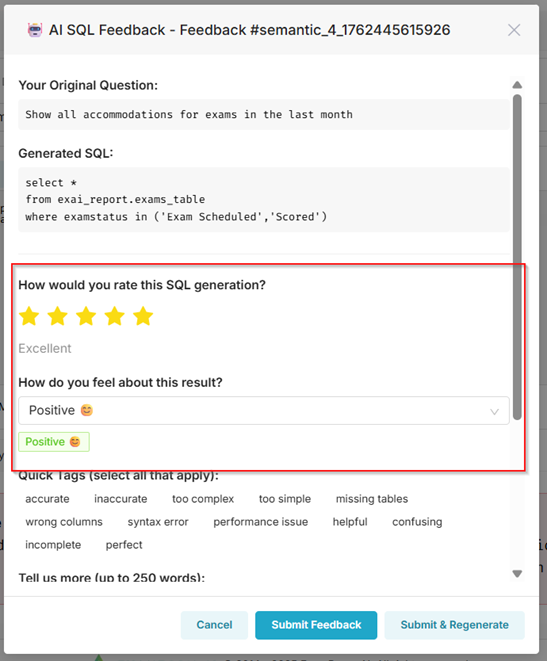
- Your original question and the generated SQL will be displayed in the top section of the feedback pop-up box.
- Rate the SQL Generation
- Use the star rating (1-5 stars) under "How would you rate this SQL generation?" To quickly assess overall quality.
- Select stars based on accuracy, completeness, and usability.
- In the "How do you feel about this result?" dropdown, choose an option to indicate your sentiment.
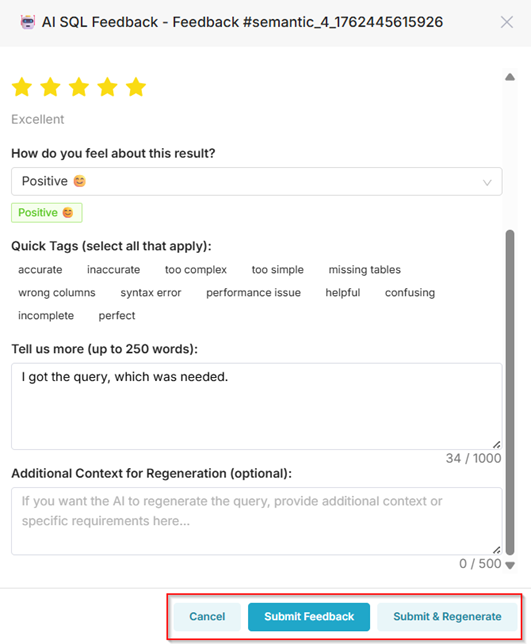
- In the “Tell us more” section, you can provide an insightful input or suggestions. If you have Additional Context for Regeneration, you may include it in the “Additional Context for Regeneration” section.
- Once you have filled in the feedback,
- Click Submit Feedback to submit your feedback.
- Click Submit & Regenerate to submit the feedback and generate the SQL query again.
- Click Cancel to discard.
- Use the star rating (1-5 stars) under "How would you rate this SQL generation?" To quickly assess overall quality.