AI Complete Automation Workflow
The AI Complete Automation Workflow in the Workbench's SQL Lab section provides an end-to-end automated experience for data analysis. It takes your plain-English description, analyzes your request, generates optimized SQL, executes the query safely, provides insights from the results, and creates visualizations—all in one seamless flow. This is ideal for quick, comprehensive analysis without manual intervention. Below are step-by-step instructions to use it effectively.
- Access the SQL Section
- Click SQL from the top navigation bar and select SQL Lab from the dropdown menu.
- Click SQL from the top navigation bar and select SQL Lab from the dropdown menu.
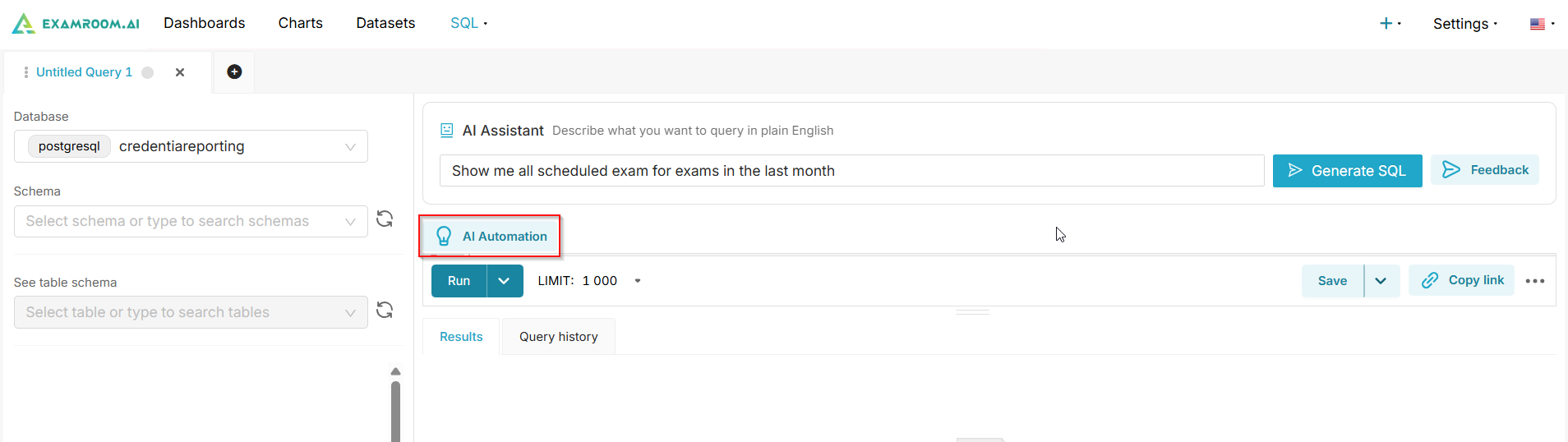
- Open the AI Automation
- Click the AI Automation option to launch the modal pop-up titled AI Complete Automation Workflow.
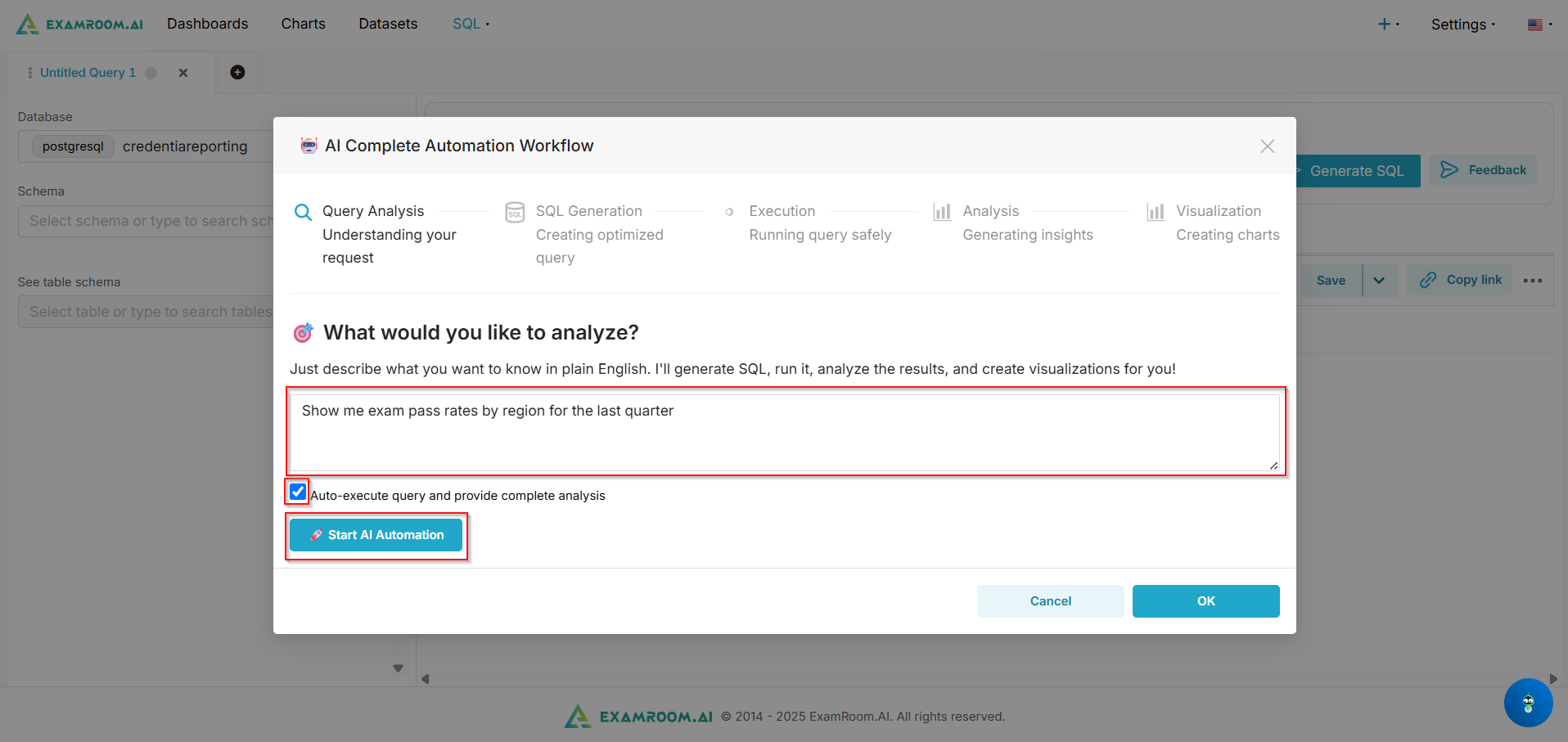
- The modal streamlines the process by automating each step: Query Analysis (interpreting your request), SQL Generation (producing an optimized query), Execution (performing the query safely), Analysis (deriving insights), and Visualization (generating charts).
- Describe What You Want to Analyze
- In the main input field labeled "What would you like to analyze?", type a clear, plain-English description of your analysis goal.
- Focus on what you want to know, including key elements like metrics, time periods, filters, or groupings.
- Example (as shown): "Show me sales trends over the last 6 months" (adapt to your data, e.g., "Show me exam pass rates by region for the last quarter").
- The AI will use this to guide the entire workflow, pulling from your selected database and schema.
- Check the box for Auto-execute query and provide complete analysis if you want the full automated run. This enables end-to-end processing without pausing at each step.
- Uncheck it if you prefer to review and approve each tab (e.g., SQL before execution) for more control.
- In the main input field labeled "What would you like to analyze?", type a clear, plain-English description of your analysis goal.
- Select Start AI Automation and Query Selection
- Click Start AI Automation to run the complete AI automation workflow.
- Click Start AI Automation to run the complete AI automation workflow.
- Check the complete Analysis and suggested visualization
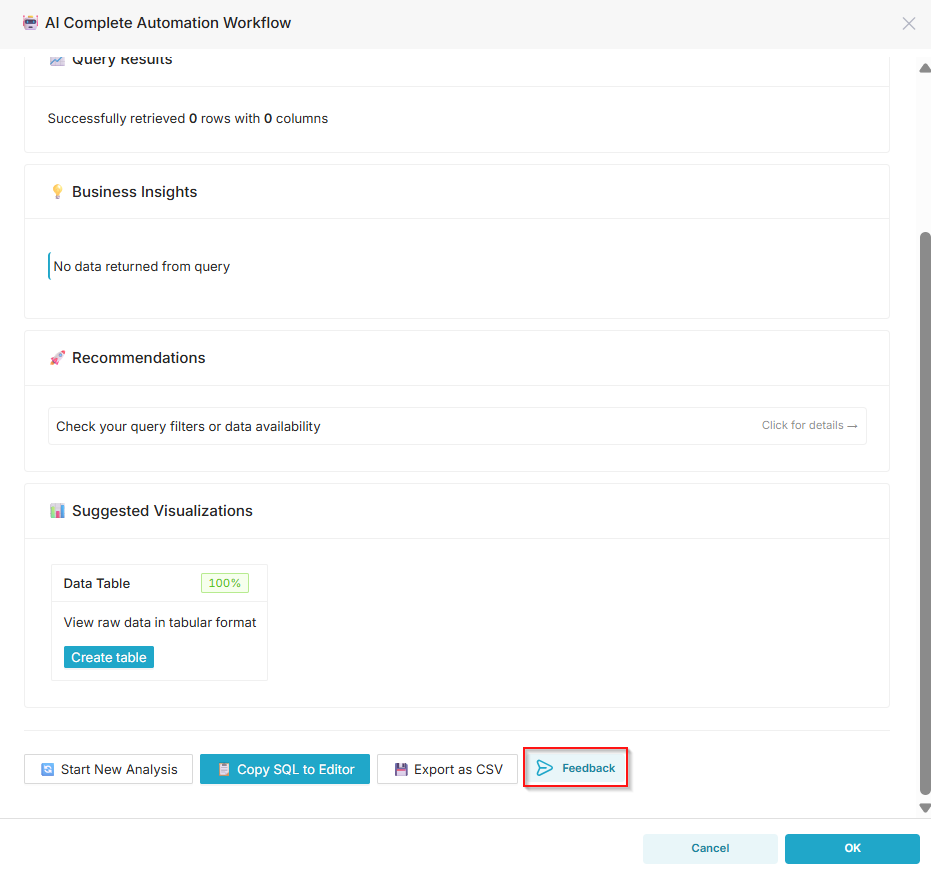
- You can review the generated insights on Query Results, Business Insights, and Recommendations in the respective sections.
- You can also explore the suggested visualization. To view, click a selection from the suggested options.
- Actions
- Start New Analysis: Click the Start New Analysis button if you'd like to begin the analysis again with a more detailed approach, discretion.
- Copy SQL to Editor: You can copy the generated query to the SQL editor to run or save.
- Export as CSV: Click to export the generated query results in .CSV format.
- Feedback: Click to provide feedback for the generated query results. See AI Automation Feedback for more information.
- Click the Okay button.

AI Automation Feedback
The feedback is available after executing the AI automation workflow in the Workbench's AI Complete Automation workflow. It allows you to rate and provide structured feedback on the generated SQL to improve future results. This helps refine AI performance without regenerating the query unless desired.
Follow the steps below to provide feedback:
- Once the AI Automation workflow is finished, you can find the Feedback button at the bottom to submit your feedback. Click the Feedback button.
- Rate the SQL Generation
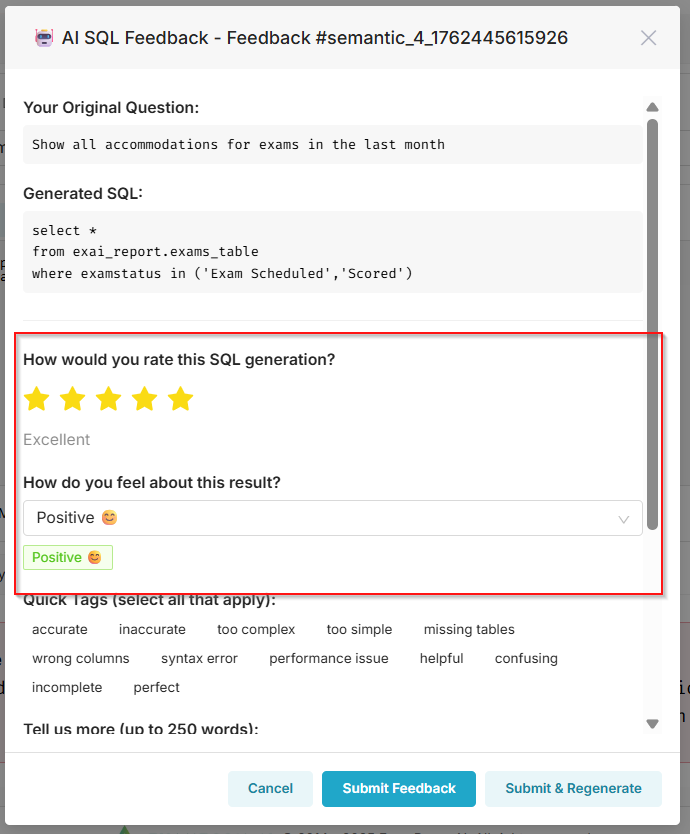
- Use the star rating (1-5 stars) under "How would you rate this SQL generation?" To quickly assess overall quality.
- Select stars based on accuracy, completeness, and usability.
- In the "How do you feel about this result?" dropdown, choose an option to indicate your sentiment.
- Use the star rating (1-5 stars) under "How would you rate this SQL generation?" To quickly assess overall quality.